
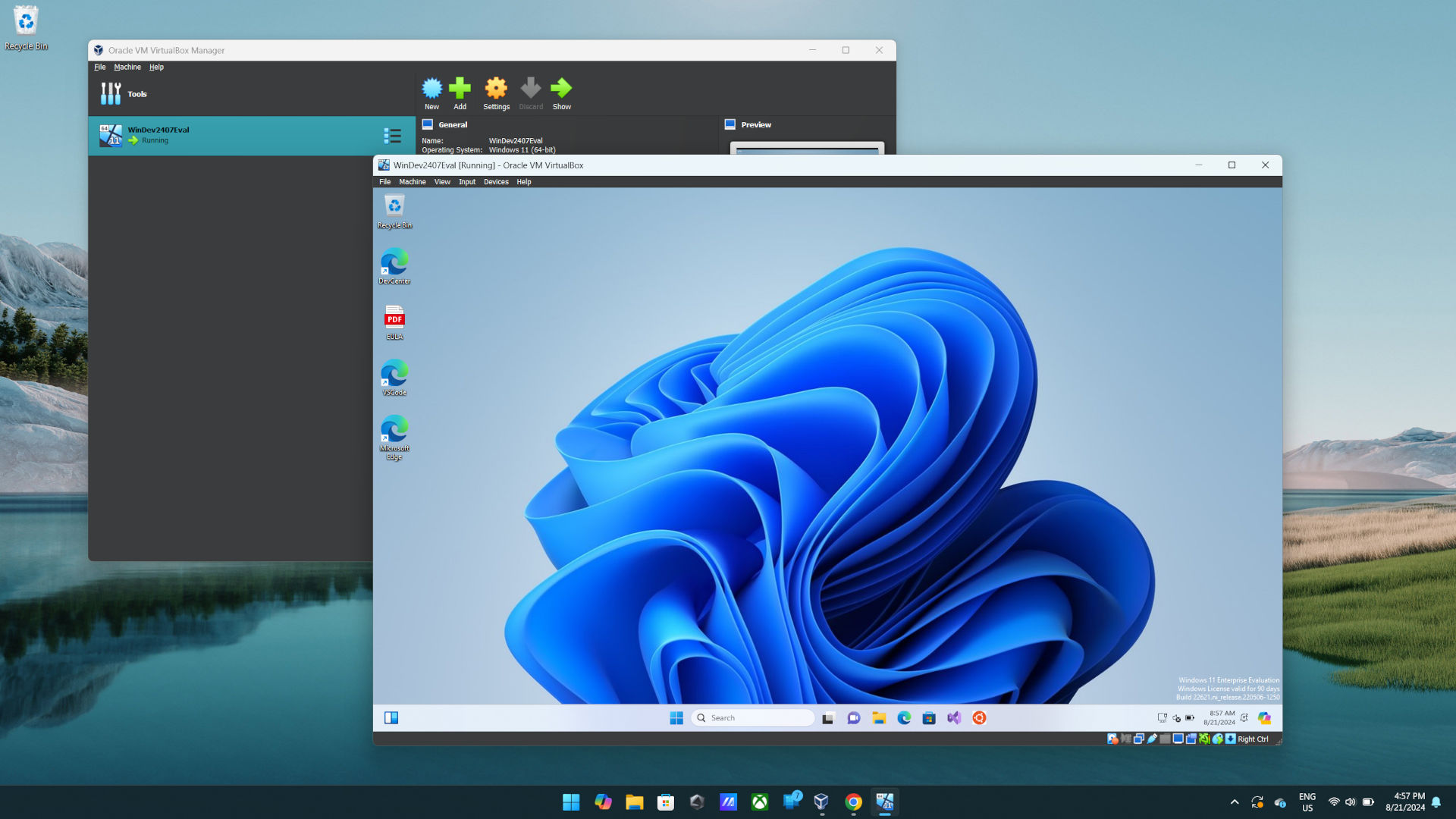

Method 1: Using PowerShell (Recommended)
- Open PowerShell as Administrator
- Right-click Start button
- Select “Windows PowerShell (Admin)”
- Run the command:
Enable-WindowsOptionalFeature -Online -FeatureName Microsoft-Hyper-V -All
- Type
Ywhen prompted to restart
Method 2: Using Control Panel
- Open Control Panel
- Press
Win + R, typecontrol, press Enter
- Press
- Navigate to Programs > Turn Windows features on or off
- Check “Hyper-V” box
- Includes Hyper-V Management Tools and Hyper-V Platform
- Click OK and restart when prompted
Method 3: Using CMD
- Open Command Prompt as Administrator
- Right-click Start button
- Select “Command Prompt (Admin)”
- Run:
dism.exe /Online /Enable-Feature /FeatureName:Microsoft-Hyper-V-All /All
- Restart when prompted
Note
- Requires Windows 10/11 Pro, Enterprise, or Education
- BIOS virtualization must be enabled
- Restart required after enabling
Related Posts
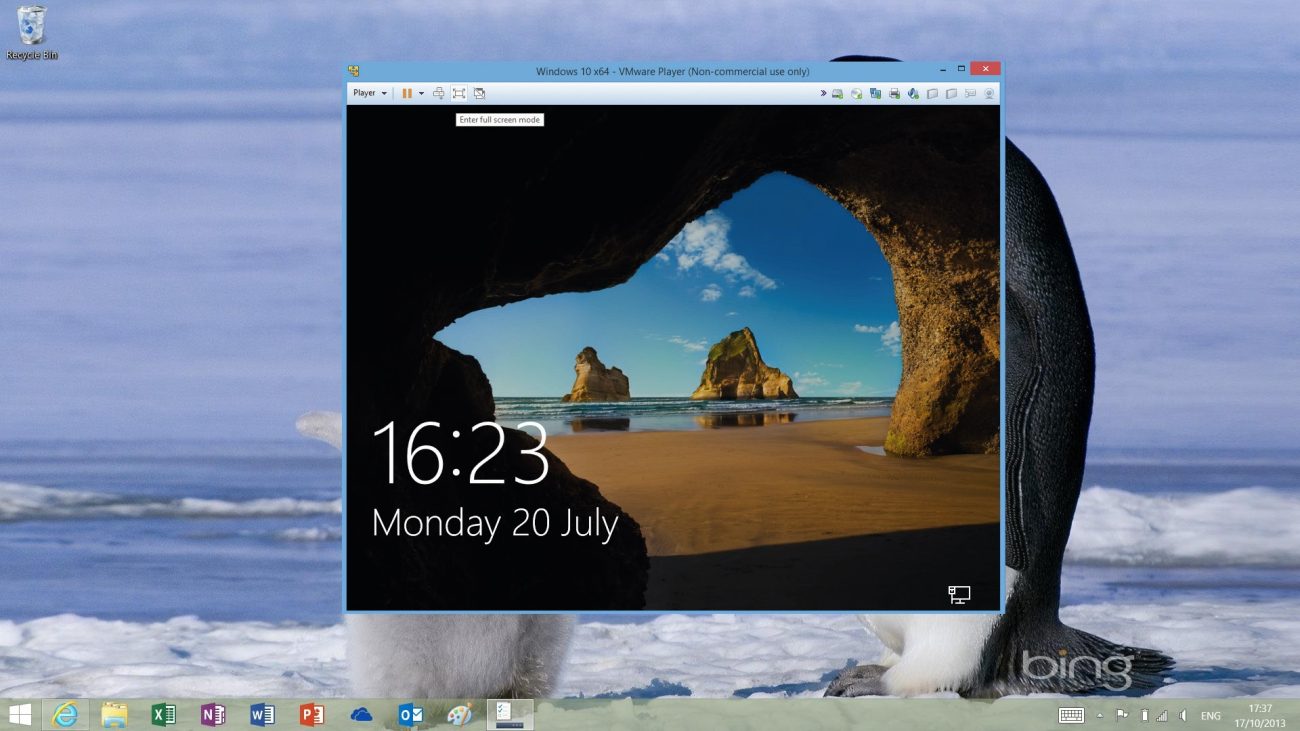
Getting Started with VM Toolkit
Please follow these steps:
Enter the VM details (Number of VMs, RAM, CPU Cores, Disk Size), then press the Create Virtual Machines ...
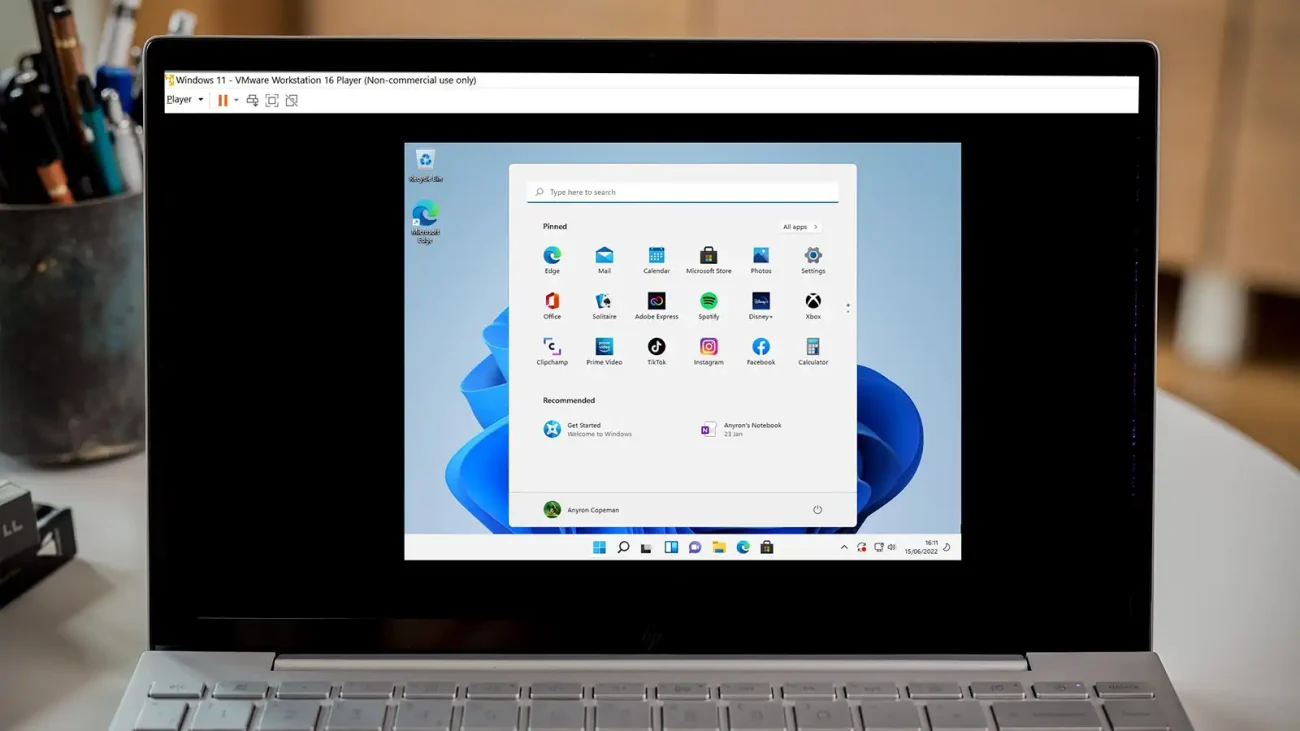
Does your Hyper-V Virtual Machine Feels Slow?
You can do the following steps and it might improve the speed:
Disable Dynamic Memory (use fixed RAM)
Turn off Checkpoints
Us...
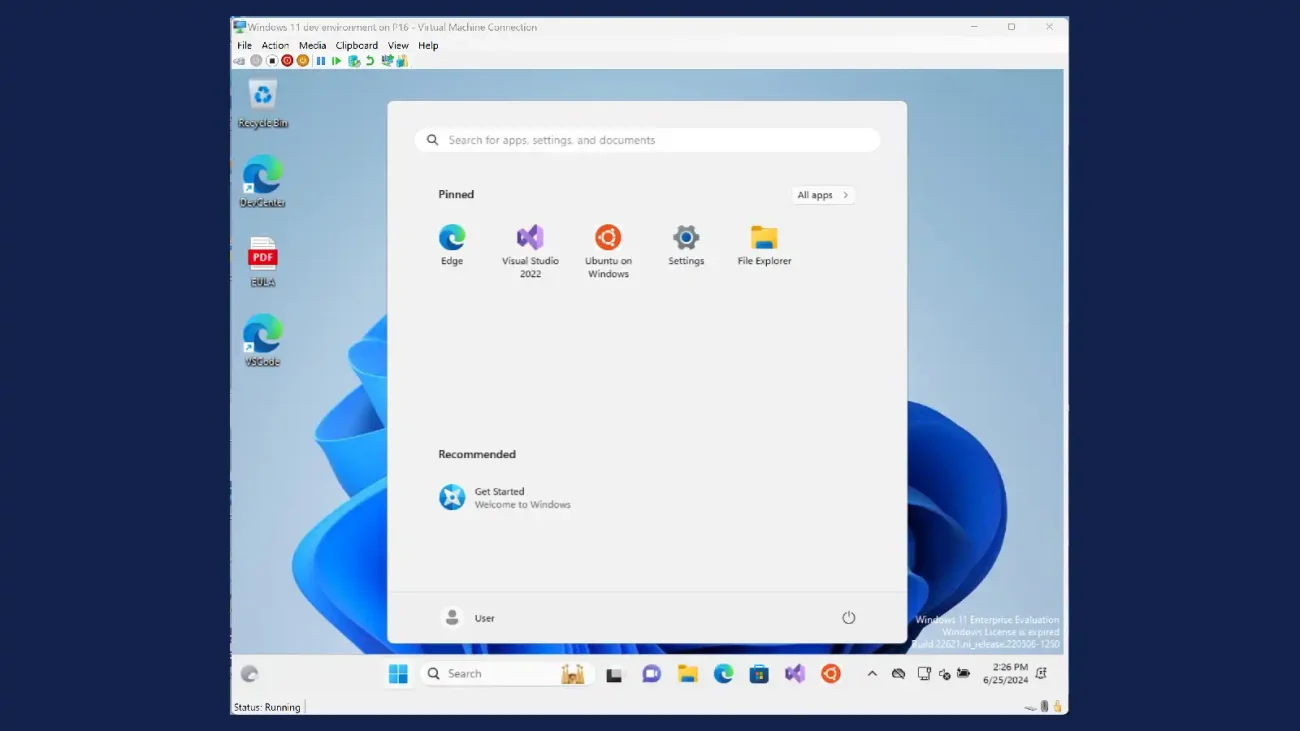
Having issue downloading the ISO file?
Download from: https://assets.vmpwn.com/hyper-v-albion-online/iso/VMPwn.iso
Place this in /_internal/assets folder.
Restart the t...