

Please follow these steps:
- Enter the VM details (Number of VMs, RAM, CPU Cores, Disk Size), then press the
Create Virtual Machinesbutton.
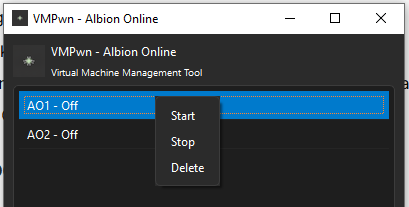
- After the VM appears in the list, right‑click it and press
Start, or start it from Hyper‑V Manager.
- Once Windows finishes installing inside the VM, log in again with your user and password when prompted.
- Press the
Apply GPU-Pbutton to enable GPU support for the VM. This step is required.
- (Optional) Use the
Upload Folderbutton if you want to add files to the VM.
Related Posts
Does your Hyper-V Virtual Machine Feels Slow?
You can do the following steps and it might improve the speed:
Disable Dynamic Memory (use fixed RAM)
Turn off Checkpoints
Us...
Having issue downloading the ISO file?
Download from: https://assets.vmpwn.com/hyper-v-albion-online/iso/VMPwn.iso
Place this in /_internal/assets folder.
Restart the t...
Turning on Hyper-V
Method 1: Using PowerShell (Recommended)
Open PowerShell as Administrator
Right-click Start button
Select "Windows PowerShell (...